 |
Global CASHplus CashWeb |
|
Global CASHplus CashWeb |
Account summary

The Account Summary screen offers transaction level reports, categorized based on client requirements. These reports provide:
· Accurate and timely information of the cash balance in the account
· Details on the movements in the various accounts maintained with the bank
· Data for the current balances of the system bank accounts fetched on a real time basis, as received from the intra-day account balance interface.
In this screen the last updated report of the account is viewed. Account balances for the prior day, for time periods in history, if available can also be viewed.
1. Click Account in the header menu.
2. Click Account >> Account Summary.
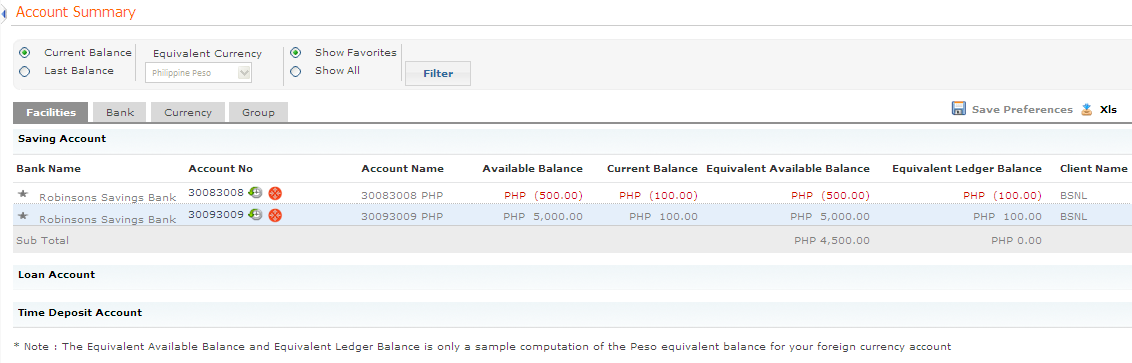
3. Filter the search to view the account balance based on the following criteria. If information is not retrieved within a pre-defined waiting time, GCP CashWeb displays the last available account balance:
· Last Balance: This radio button displays the last balances, and if balances are not retrieved within a pre-defined waiting time, in case balances are not received, the system displays the last available balance.
· Current balance: This radio button is selected by default. When the Current Balance is selected, GCP sends online XML request to the core banking solution to retrieve same day transaction activities for the customer account. If the response fails from core banking application, previous account balances maintained with GCP gets displayed.
· Equivalent Currency: This drop-down list displays all currencies listed in the Currency master. Select the currency in which you want to view the account summary. The default value for this field is Philippine Peso (PHP).
· Show Favorites: This radio button is selected, by default, and displays only the records marked as favorites. For system bank accounts, based on user-account linkage, GCP Cash Web reads the balance for the favorite accounts. If the data is not retrieved within the specified time period, then GCP Cash Web displays the last available balance.
· Show All: If you select this radio button, all records are displayed. The system reads the balance for all system bank accounts based on user-account linkage. If data is not retrieved within the specified time period, the system displays the last available balance.
4. On selecting the required filter criteria, click Filter to obtain the relevant account balance summary.
5. You can view your account details depending on the following criteria, based on the tabs applicable for data retrieval, as follows:
· Click Facilities to retrieve all valid accounts of the corporation (with user account linkage) that are grouped under the different types of accounts available in the system such as Savings, Current, and Term Loan.
· Click Bank to retrieve all valid accounts of the corporation (with user account linkage) that are grouped based on the account bank.
· Click Currency to retrieve all valid accounts of the corporation (with user account linkage) that are grouped based on account currency.
· Click Group to retrieve all valid accounts of the corporation (with user account linkage) that are grouped based on user defined Account Groups. If an account belongs to multiple groups, it is displayed multiple times (once in each group to which it belongs).
View the status details of the accounts along with the Available and Ledger Balance and the Grand Total based on the criteria selected above.
6. The Account Summary grid displays the following information:
· Bank Name: Displays the bank name
· Account Number: Displays the account number
· Account Name: Displays the account name as maintained in account name master
· Available Balance: Displays the available balance in the account in the account currency
· Current Balance: Displays the current balance in the account in the account currency
· Eqv. Available Balance: Displays the available balance in the account in the selected currency.
· Eqv. ledger Balance: Displays the ledger balance in the account in the selected currency.
· Client Name: Displays the client name to whom the account belongs.
· Sub Total: Displays the sub total of available balance and outstanding balance in the selected currency.
7. Following activities can be done on the data displayed in the account summary screen:
· Click  to save the current preferences. On next login, records
can be viewed based on current saved preferences (Favorites setting).
to save the current preferences. On next login, records
can be viewed based on current saved preferences (Favorites setting).
· Click  to view or save the Account Balance summary (current
screen data) in XLS format.
to view or save the Account Balance summary (current
screen data) in XLS format.
· Click the Account Number hyper link to view the Account Activity screen that displays the movement for the selected day.
· Click  to view the Account Balance History screen
that displays the movement of the selected account in real time.
to view the Account Balance History screen
that displays the movement of the selected account in real time.
Note:
The intra-day account balance interface is triggered when the user clicks on the 'Account Summary' menu or ‘Account’ menu. GCP receives the response in intra-day account balance interface as follows:
• Success –if balances for all BTR accounts assigned to the user are available.
• Fail – If a negative response message is received from the interface (balances are unavailable).
|
© 2014 Fundtech. All rights reserved. |

