 |
Global CASHplus CashWeb |
|
Global CASHplus CashWeb |
Account activity

The Account Activity screen displays the account activity records (transaction details credited/debited on the account), in the sequence as received from the intra-day account activity interface. The Account Activity screen displays an itemized debit/credit transactions for the selected customer account either for the current day or for the selected period.
For current date account activity details, system interfaces with host system to retrieve the records for current date. For previous date, system refers to the records uploaded via EOD account balance upload.
1. Go to Account in the header menu.
2. Click Account >> Account Summary.
3. Click the Account Number hyperlink in the grid.
TIP: Select an account and filter the search to view the account activity for the selected period. By default, the details of the account selected in previous screen are displayed.
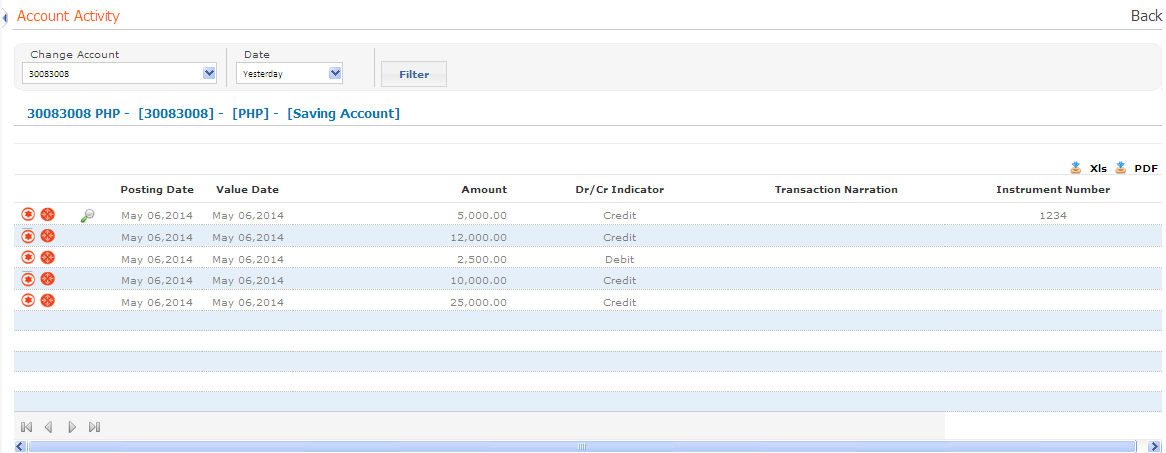
4. Select the Date for which account activity is to be displayed. Default value is Today. The other options are Yesterday, Current Week, Last Week, Current Month, Last Month and Date Range.
Note: If you select Date Range then you have to specify the date range to view the account activity of a particular period.
5. Click Filter to view the relevant account activity.
6. Information displayed in the Account Activity screen depends upon the account selected.
7. Total number of Credits and corresponding Amount along with total number of Debits with its corresponding Amount is displayed in the header area.
8. The grid displays the following information for a saving account:
· Posting Date
· Value Date
· Amount
· Dr/Cr Indicator
· Transaction Narration
· Instrument Number
The grid displays the following information for a current account:
· Transaction Date
· Cheque number
· Service Branch
· Transaction Amount
· Type
· Value Date
· Balance
9. Following activities can be done on the displayed data:
· Click  corresponding to a transaction to view the Additional
Information for that transaction.
corresponding to a transaction to view the Additional
Information for that transaction.
Note: This icon is available only if the batch reference number is available for a transaction.
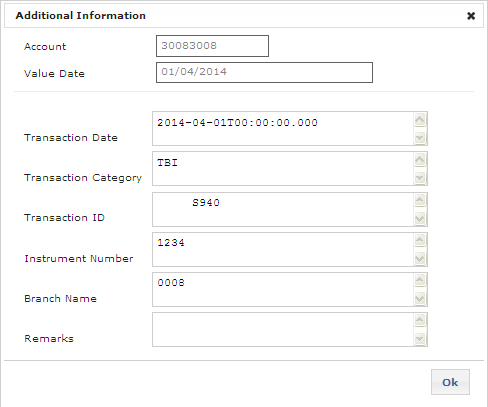
· Click  to view the enrichments.
10. Click Ok to go back to Account Activity screen.
11. Click Back to go to the Account Summary screen.
|
© 2014 Fundtech. All rights reserved. |

