 |
Global CASHplus CashWeb |
|
Global CASHplus CashWeb |
Account history

The Account Balance History screen enables you to view the balance history of the selected account, based on the criteria selected for the date filter.
1. Go to Account in the header menu.
2. Click Account >> Account Summary.
3. Click the History icon against a record in the grid.
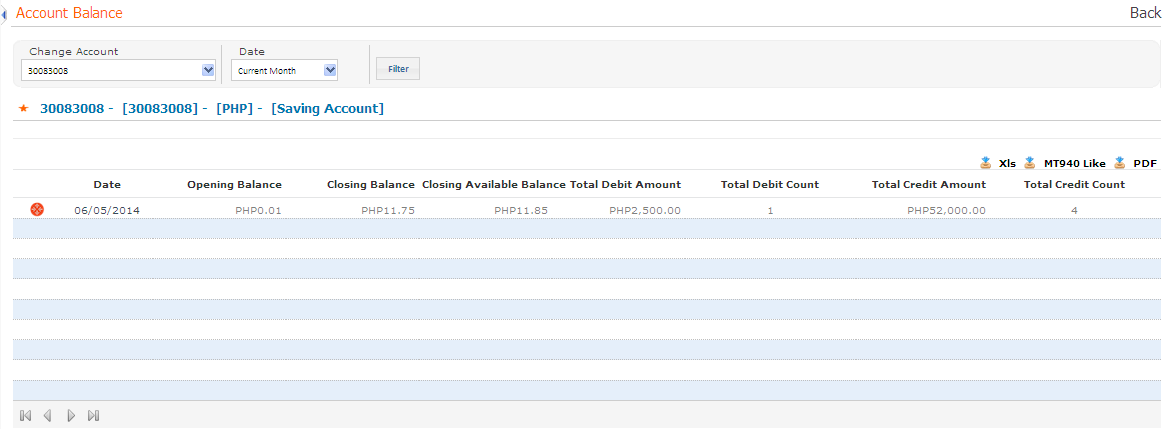
4. Select the Date for which account history is to be displayed. The options available are Last week, Current Month, Last Month, and Date Range.
Note: If you select Date Range then you have to Enter the date range to view the account activity of a particular period.
5. Click Filter to view the relevant account activity.
6. The detailed account history is further displayed under the following heads:
· Date: Displays the date on which the transaction was hosted on to the application. Click on the Date hyperlink to go to the Account Activity screen to view the account movement for the selected day.
· Opening Balance:Displays the opening balance of that day.
· Closing Balance: Displays the closing balance of that day.
· Closing Available Balance: Displays the opening ledger balance of that day.
· Total Debit Amount: Displays the total debit amount.
· Total Debit Count: Displays the count of total debit activities in the account.
· Total Credit Amount: Displays the total credit amount.
· Total Credit Count: Displays the count of total credit activities in the account.
7. Click icon corresponding to a transaction, to open the Additional
Information popup that displays more details about the selected
transaction.
icon corresponding to a transaction, to open the Additional
Information popup that displays more details about the selected
transaction.
8. Click  to download
screen data in xls format.
to download
screen data in xls format.
9. Click Back to go to the Account Summary screen.
|
© 2014 Fundtech. All rights reserved. |

