 |
Global CASHplus CashWeb |
|
Global CASHplus CashWeb |
Transaction search
Transaction search allows you to customize filters in the form of templates to create your own search criteria. Templates reduce the time and effort to select a set of filters each time you log in to the system and search for certain information for a said client. Save a template with the necessary fields specifying the filter conditions. Based on this template, GCP CashWeb displays the details on the summary page.
1. Go to Account in the header menu.
2. Click Account >> Transaction Search to open Template screen. The header displays the list of existing templates in the system. In case you do not require a template, you have the option to Delete it.
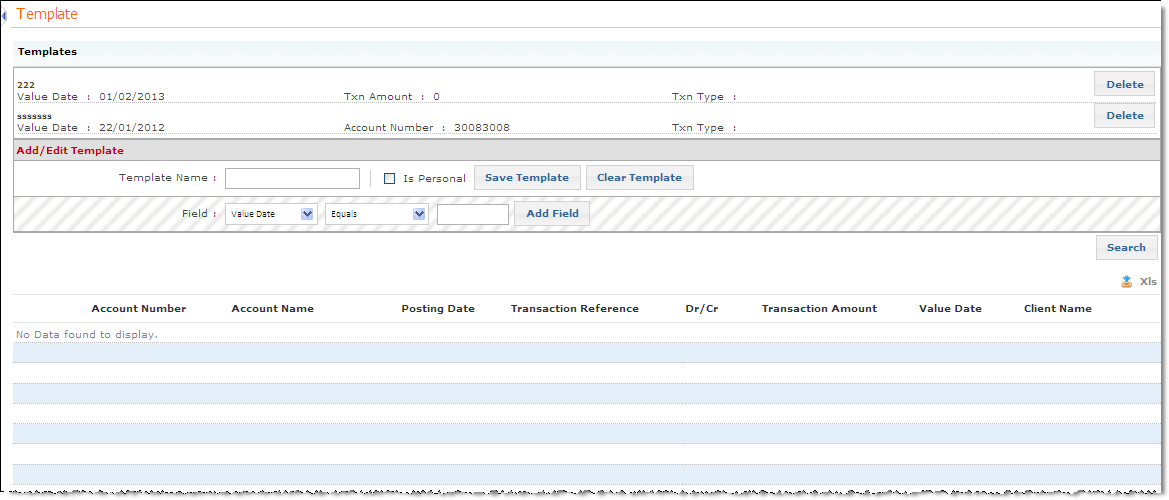
3. To define a template, enter the following:
· Template Name: Type a unique identification code for your template. If you have selected an existing template, this field need not be changed.
· Is Personal: Select the "Is Personal" field if you don't want the search template to be available to other users in GCP CashWeb.
Note: This check box is available only for client user.
· Field: This field allows you to customize the template as per your requirements. You have the option to add all six fields available in the drop-down list.
4. Enter Values Equal to or Between to define the criteria and click Add Field. The selected field gets added to the template. You can also delete a field that you have already added to your template.
5. Click Save Template to save a new or modified template.
Note: To modify an existing template, click Clear Template to clear all the existing details, or delete only those fields that are not required.
6. Select a template and click Search to search for transactions based on the template or download the output in XLS format.
7. Click  to download screen data in XLS format.
|
© 2014 Fundtech. All rights reserved. |

