 |
Global CASHplus CashWeb |
|
Global CASHplus CashWeb |
The common toolbar
The common toolbar is located at the top right corner of the screen. It displays the options common across all screens. Depending on your access rights, various options are displayed on the screen. This toolbar contains hyperlinks that can be accessed from any screen of the application.
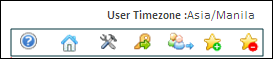
| Hyperlink | Function |
Help  |
Opens the help page |
Home  |
Navigates to the home page of the application |
Change your preferences  |
Used to select accounts for viewing the balances in graphical format, on the dashboard page. You can also change the password questionnaire according to your preferences. |
Change password
 |
Used to change password |
Switch client
 |
Used to switch between clients |
Add
current page to quick links |
Used to add a currently open page that you access more often, to quick links |
Remove
current page from quick links |
Used to remove a currently open page from quick links |
In this topic
 Add/ remove
page to quick link
Add/ remove
page to quick link
This option is available only if the Account Balance widget is available in the dashboard.
The balances of selected accounts, according to your preferences, can be viewed in graphical format in the Welcome dashboard screen.
1. Click to open the User Preferences
screen.
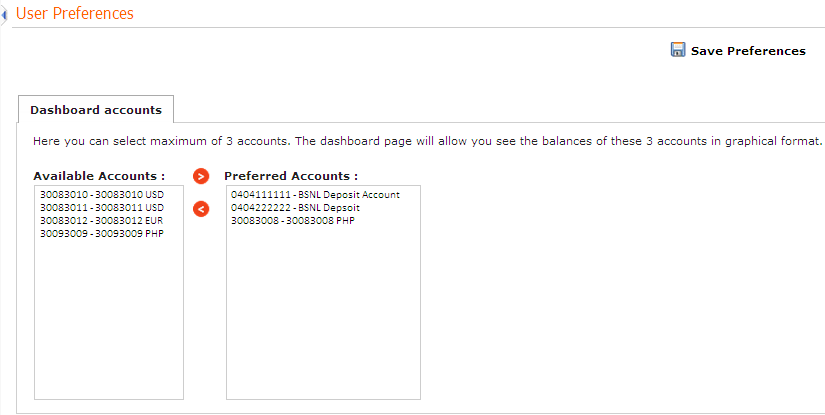
The Available Accounts box, lists all accounts of the user.
2. Select the
accounts to be viewed on the dashboard and click to
move them to the Preferred Accounts
box.
to
move them to the Preferred Accounts
box.
Note:
To de-select an account, click  to
move it back to the Available accounts box.
to
move it back to the Available accounts box.
3. Click the
 to save the selection.
The balances of these three accounts can now be viewed in graphical format in the Welcome dashboard screen.
Note: You can select maximum of 3 accounts to be viewed on the dashboard in the graphical format.
If you have rights to change password, you can change your password anytime by using this screen.
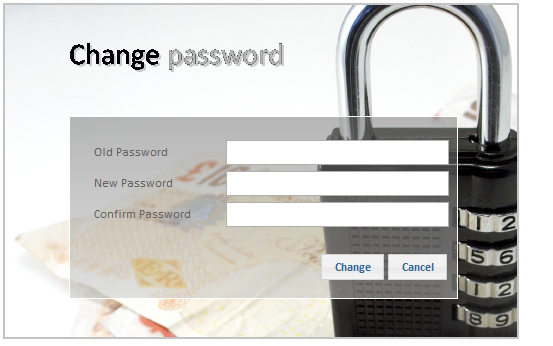
1. Click to open the Change
Password screen.
2. Type the existing password in the Old Password field.
3. Type the New Password.
4. Re-type the new password in the Confirm Password field.
5. Click Change.
Note:
• The password is case-sensitive.
• Passwords must have a minimum of five characters. Special characters that are not permitted in this field are: “ \ ~ ^ ‘ .
This tool at the bank admin level allows you to switch between the clients and corporations.
From Client login, you can switch between the clients of the same corporation.
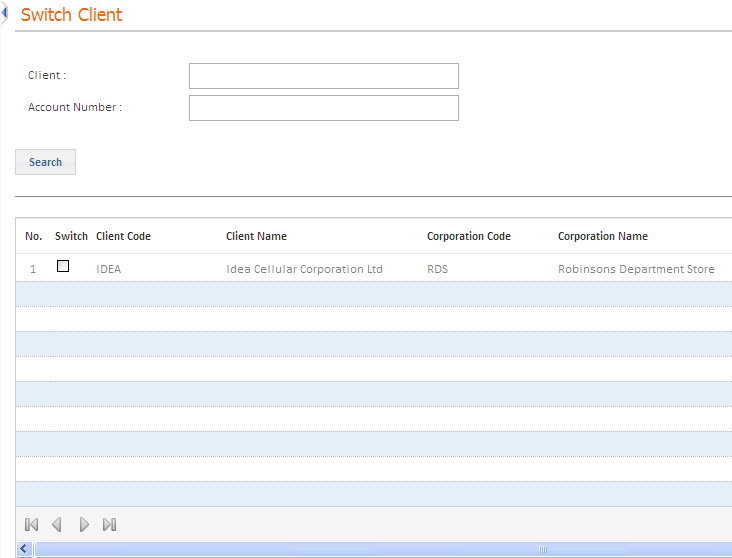
1. Type the corporation name in the field.
2. Click Search. The grid displays the list of all clients belonging to the selected corporation.
3. Select the Switch check box for the clients that you want to select.
Tip: You can click Search without specifying the corporation name. A list of all clients is displayed.
1. Type the client name.
2. Click Search. The grid displays the client.
3. Select the Switch check box for the client that you want to select.
Note: A client user does not have the option to select the corporation but can select the other clients belonging to the same corporation.
This option enables you to add or remove pages to the quick link menu for easy access.
|
© 2014 Fundtech. All rights reserved. |


